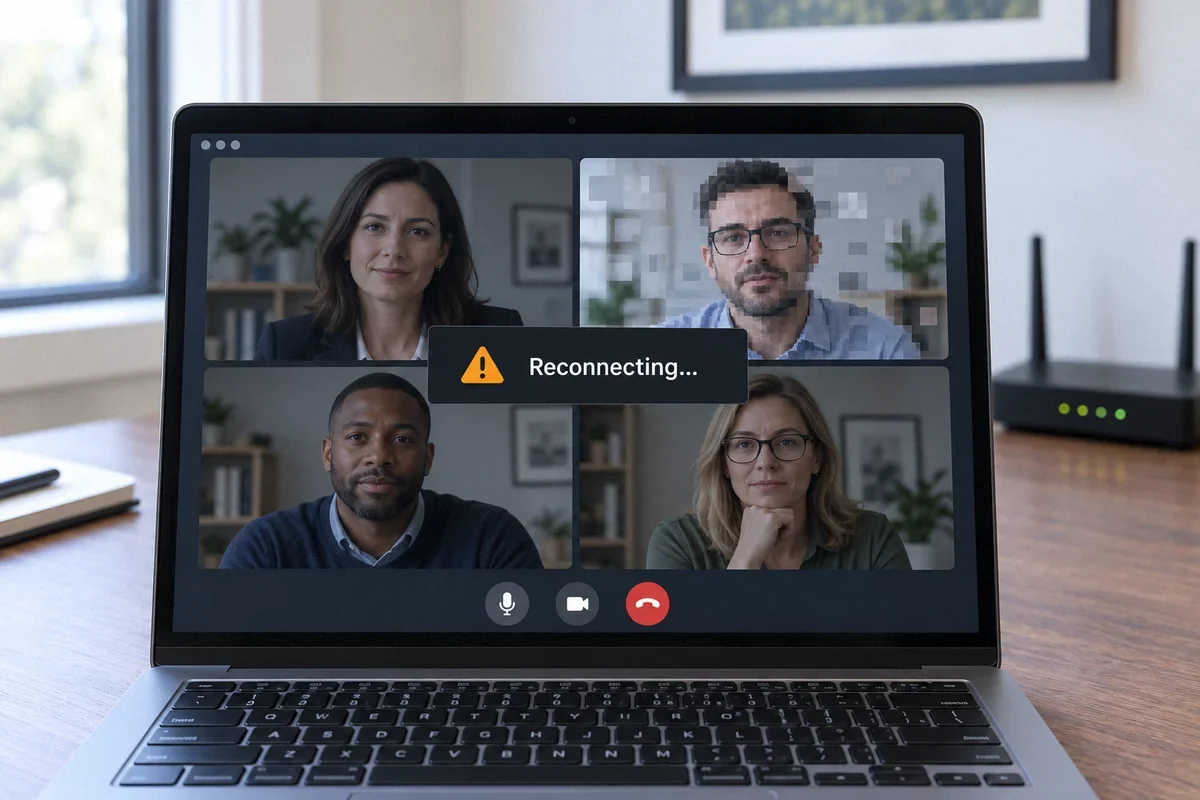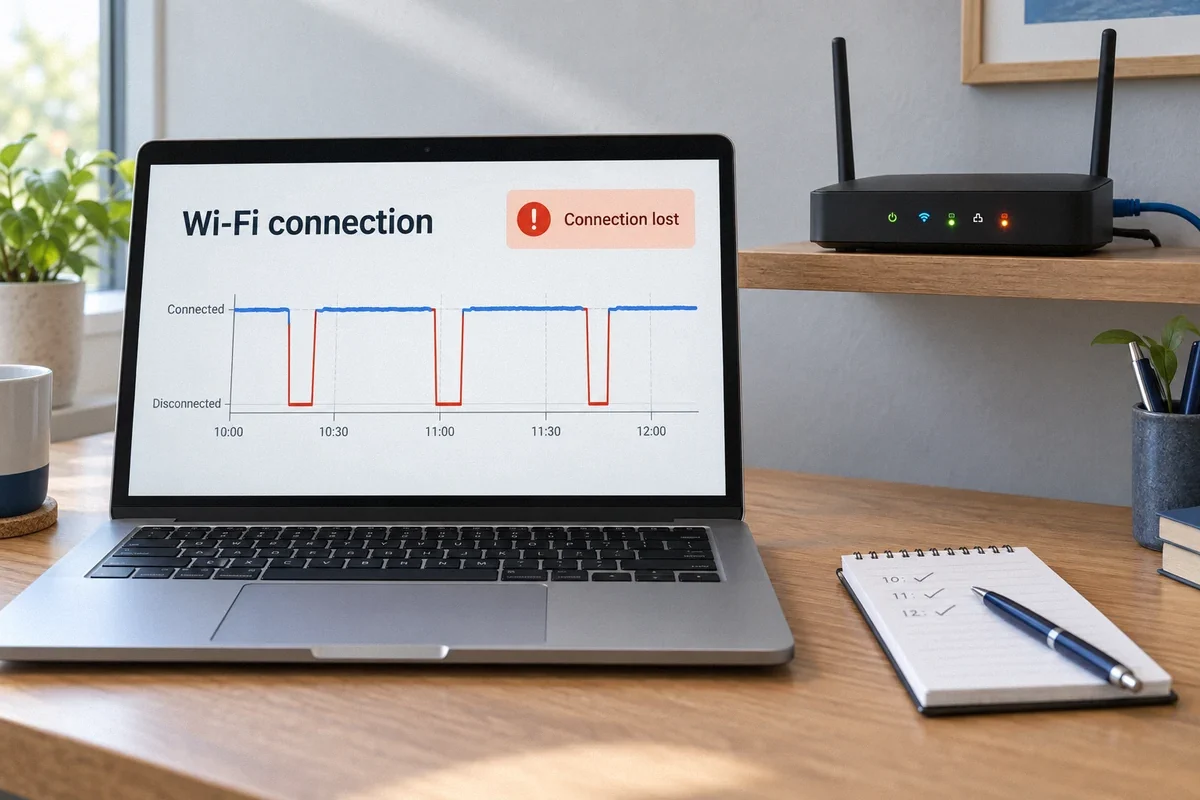
During the next dropout, compare a second device and, if available, a wired connection. Record the time and equipment status before restarting. The pattern helps separate Wi-Fi, router and provider faults.
Capture the failure before it disappears
A restart can restore a connection while clearing the evidence needed to diagnose it. If the situation allows, spend a minute recording what stopped working first. Note whether the wireless network disappeared, the device stayed connected without internet, or only one application failed.
Write down the time, affected rooms, devices and equipment lights. Check whether another household device can open more than one website. If you have a computer already connected by Ethernet, compare it while the problem is happening.
This is more useful than replacing the router because the connection feels unreliable. Similar symptoms can come from a wireless issue, a bad cable, equipment power, router software or the upstream provider connection.
Let the pattern narrow the investigation
Do not treat these observations as final diagnoses. Use them to select the next check and to explain the problem to support.
- Only one device fails: compare that device elsewhere and review its network settings and supported updates.
- Wireless devices fail while Ethernet still works: investigate the wireless equipment, coverage and settings.
- Wired and wireless devices fail together: inspect the shared router, upstream connection and power before adding access points.
- The same time each day: compare scheduled updates, backups, equipment timers and provider events with the outage log.
- Only one website or app fails: compare another service and check that service’s status.
Check the accessible equipment and connections
Make sure the router’s ventilation openings are clear and that it is used within its manufacturer’s environmental limits. Confirm that power and network plugs are seated and that cables are not visibly damaged or sharply pinched. Use the specified power supply; do not substitute a random adapter that happens to fit.
If a detachable Ethernet patch cable is suspect, compare it with a known working compatible cable, one change at a time. A technician can investigate installed cable runs and connection points when the fault is beyond an accessible patch cord.
Where access points receive Power over Ethernet, or PoE, the switch or injector supplies power through the network cable. Its capacity and compatibility are part of the diagnosis. A problem affecting several access points may involve their shared equipment rather than several simultaneous radio failures.
Review updates and settings with a way back
Record equipment models and software versions. Install supported firmware through the manufacturer’s normal process, with a configuration backup where available. Plan the interruption so an update does not unexpectedly cut off a meeting or business operation.
Recent additions can also change how the network works. A second router may be operating in an unintended mode, or multiple devices may be assigning addresses on the same local network. Have the layout checked before disabling services or copying configuration advice from an unrelated setup.
Factory reset is different from restart. It may erase provider settings, device names and other configuration. Use it only when the recovery steps and required access are understood. A scheduled daily reboot can hide the pattern while leaving the underlying fault unresolved.
Make maintenance specific and useful
Keep a short equipment inventory, a simple connection diagram, configuration backups and a record of changes. The owner should control the management account and recovery details. Store credentials securely rather than in labels on public equipment or an ordinary service-request email.
An agreed maintenance visit can review supported updates, inspect accessible connections, test the rooms that matter and confirm that guest access works as intended. The interval should reflect equipment support, business needs and the history of faults; there is no universal schedule that suits every network.
For repeated outages, Fox Electric can review the local installation and define diagnostic or maintenance work. If evidence points to the provider, the timestamped observations help that provider investigate. Continuous monitoring, remote access and response times need an explicit service agreement; they should not be assumed from an installation visit.
Sources and further reading
Technical references reviewed September 27, 2026. Menus and supported features vary by equipment model and software version.
- TP-Link: unstable-connection troubleshooting
- Apple: firmware, configuration and address-assignment settings
Customer question: A homeowner reports Wi-Fi failures while Ethernet still works. This community discussion illustrates the problem; it is not a verified diagnosis or a Fox Electric customer review.